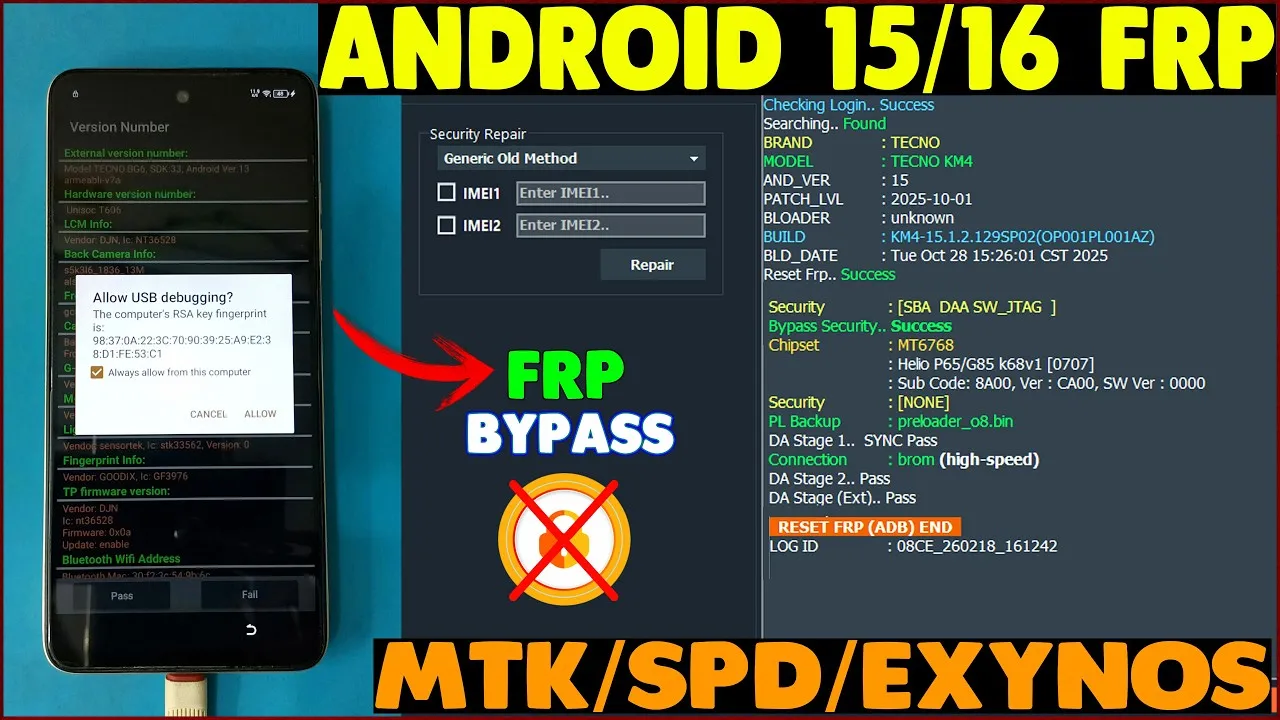
If your phone is stuck on Google verification after factory reset, you are facing an FRP lock issue. In Android 15 devices, FRP (Factory Reset Protection) has become more secure, making it difficult for users to bypass without proper tools.
In this guide, we will show you how to fix Android 15 FRP lock using BFT Tool. This method is simple, safe, and works on many supported Android brands.
We have also added a detailed video tutorial below for better understanding.
What is FRP Lock in Android 15?
FRP (Factory Reset Protection) is a security feature introduced by Google to prevent unauthorized access after a factory reset.
When FRP is active:
- You must enter the previously synced Google account
- Without correct account details, device remains locked
- Android 15 security patch makes bypass more difficult
Video Guide: Android 15 FRP Removal
👉 Watch the full step-by-step video tutorial below to fix Android 15 FRP lock using BFT Tool.
Download BFT Tool 👉 Click Here
Requirements Before Starting
Before using BFT Tool, make sure you have:
- Windows PC (Windows 10/11 recommended)
- Installed USB drivers
- Original USB cable
- Charged Android device (at least 50%)
- Latest version of BFT Tool installed
How to Fix Android 15 FRP Lock Using BFT Tool
Follow these steps carefully:
Step 1: Install and Open BFT Tool
Run the tool as Administrator.
Step 2: Connect Your Device
Power off device and connect in required mode (EDL / MTP / Fastboot depending on brand).
Step 3: Select Brand & Model
Choose your device brand from the tool dashboard.
Step 4: Click on FRP Remove Option
Select “Erase FRP” or “FRP Unlock” option.
Step 5: Start Process
Click Start and wait until process completes.
Step 6: Reboot Device
After success message, reboot your phone.
Your Android 15 FRP lock should now be removed.
Supported Brands for Android 15 FRP
BFT Tool supports many Android brands, including:
- MTK, Qualcomm, Unisoc, and SPD devices
- Samsung
- Asus
- Huawei
- Infinix
- Itel
- Jio Phones
- Lava
- Lenovo
- Motorola
- Nokia
- Oppo
- Realme
- Techno
- Vivo
- Wiko
- Xiaomi
- ZTE
Common Errors & Fixes
Device Not Detected
- Install proper USB drivers
- Change USB cable
- Try different USB port
FRP Not Removed
- Make sure you selected correct model
- Use latest version of tool
- Disable antivirus temporarily
Is It Safe to Use BFT Tool for FRP?
Yes, when used correctly, BFT Tool safely removes FRP without damaging system files. Always follow steps carefully and avoid interrupting process.
❓ FAQ
Does this method work on Android 15 latest security patch?
Yes, latest version of BFT Tool supports many Android 15 devices.
Will this delete my data?
FRP removal usually does not restore old data, but device may reset during process.
Is BFT Tool free?
Yes, it is 100% free and login details are included.
Leave a Comment